List Products on Best Buy
Overview
Listing a Best Buy (BestBuy) product in SellingPilot means synchronizing your product data from SellingPilot to your Best Buy store so the offer can be created, updated, and activated on the marketplace as supported.
Before you list, authorize a valid Best Buy store in SellingPilot. How to authorize a Best Buy store?
Site note: The claim → edit → save & publish flow for new listings and full edits in SP currently applies to Best Buy (United States) stores. For Best Buy (Canada) stores, creating or fully editing a draft in SP for a brand-new listing is not supported; you can still manage existing synced listings (for example, activate/deactivate, price, and inventory) per the Listing Management introduction capability table.
User Guide
Step 1: Claim products (generate draft)
In the product pool, select the product(s) you want to list on Best Buy. You can work on one line at a time or select multiple and claim in bulk. This creates a draft in the store’s list without going live on the channel.
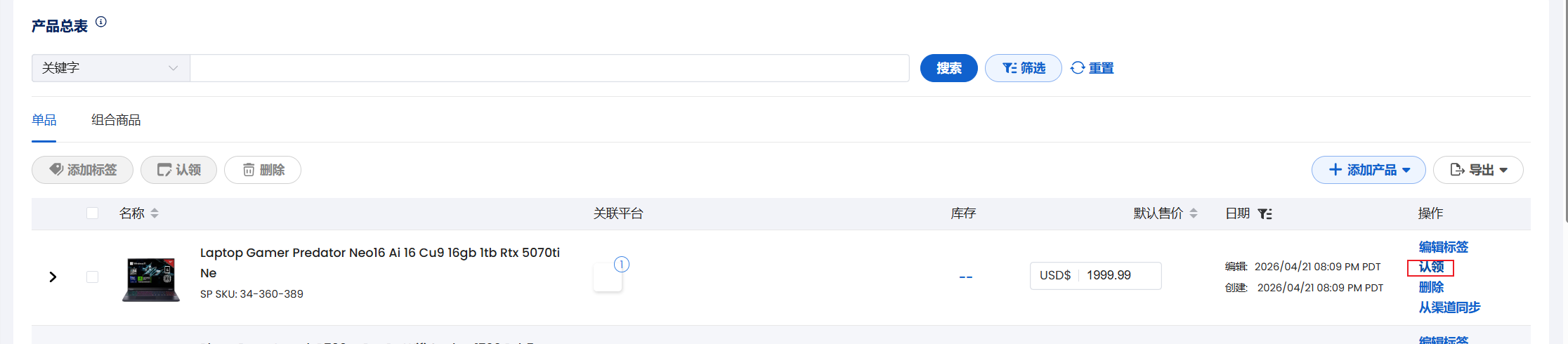
When you claim, SellingPilot will pull in the title, bullet points, description, and main images as the default. Complete the product record in the pool first to avoid missing fields on the channel.
The same product in the pool can be claimed to different channels or stores, and may be claimed more than once to the same store if allowed by the product and channel.
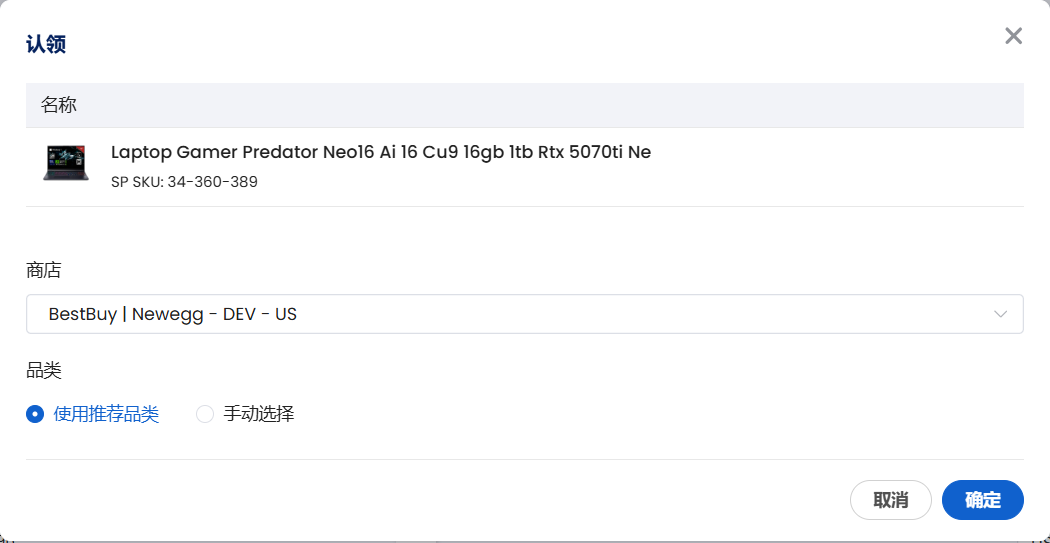
You must select a category when claiming:
- Use recommended category — SP can suggest a category from your title and other fields
- Manual selection — browse the category list or search by keyword
Step 2: Edit listing
After a product is claimed to a U.S. Best Buy store, you can open the edit page in any of these ways:
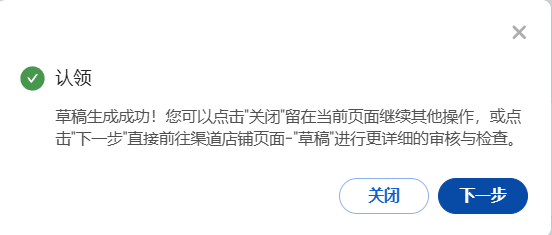
- When the claim flow finishes, click Next to go straight to the editor
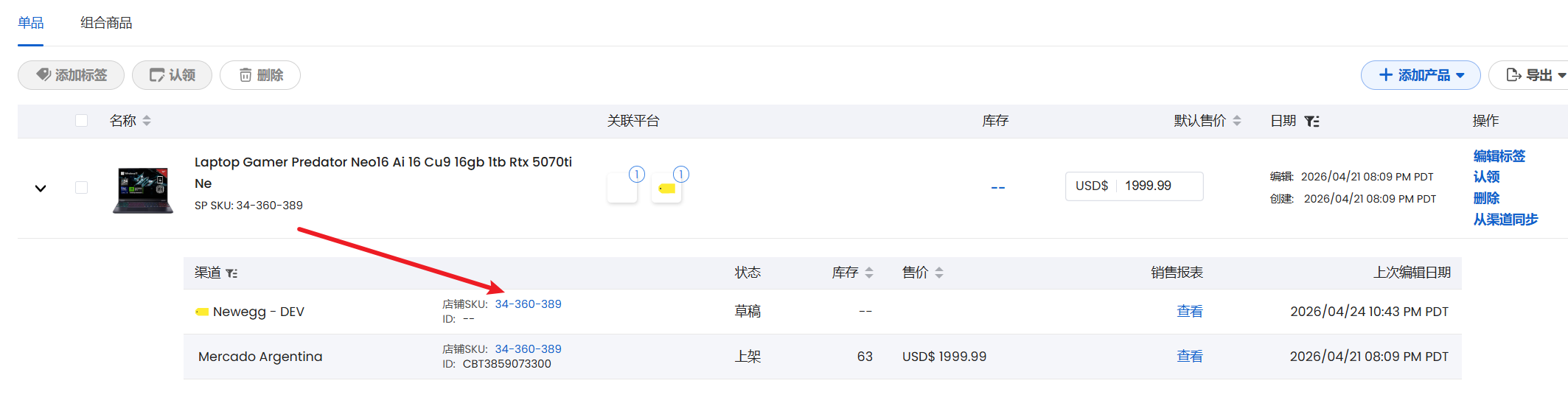
- In the product pool, expand the row, then click the store name
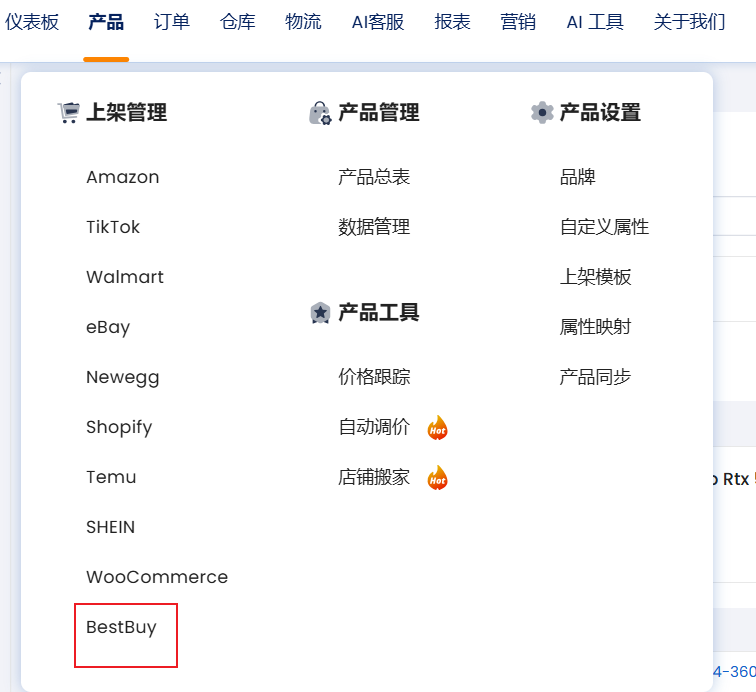
- From the top menu, go to Product > Listing Management > Best Buy, open the Drafts list, and click the title to edit
Field reference (edit page)
| Field | Description | Note |
|---|---|---|
| Store | The Best Buy store this listing is for; switch here if you have multiple | — |
| Product | SP SKU linked to this listing; use the pencil icon to change the link | — |
| Category | Best Buy category path; you can change it, with AI/keyword help to pick | Use keyword search for categories |
| Title | The title on Best Buy; max length and rules are as shown on the edit page and the channel | — |
| Store SKU | The identifier you maintain in the store | After the item is created on the channel, this is usually not changeable |
| GTIN | UPC, EAN, GTIN, and similar; choose the type and value you use | Whether it is required depends on category and channel |
| Price | Your selling price on Best Buy | — |
| Inventory | On-hand or sellable quantity; fulfillment/warehouse model as required on the edit page and by Best Buy | Use Sync manually to refresh the warehouse list when available |
| Image | Main and additional images; count and dimensions as required on the edit page and the channel | — |
| Description | Product copy; you can use bullet/detail fields together | You can use AI to generate or polish |
| Channel attributes | Best Buy/ category-specific required and optional fields | Varies by category |
Step 3: Save and publish
When the form is complete, you can Save (keeps changes only in SP) or Save & publish (sends a create/activate request to Best Buy).

In most flows, create/update and on-channel list/activate are sent together. If the channel validation fails, the line may return to Draft with a reason. Follow the message on the page.
In Listing management, you can select multiple or all ready rows for bulk publish.
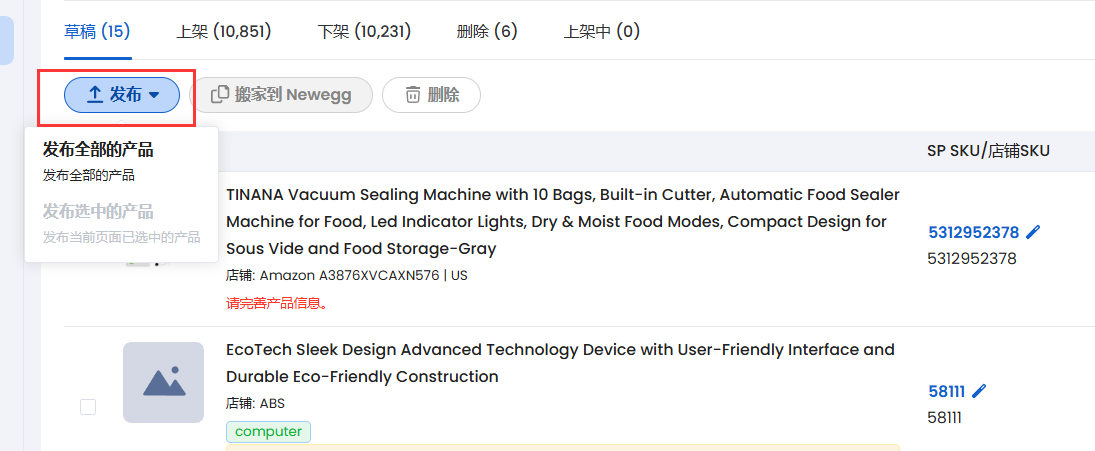
Status flow is usually in progress / processing → active/on offer on success, or back to draft on failure so you can fix errors and try Save & publish again.
FAQs
Q: I have a Best Buy Canada store. Why can’t I follow the same “claim to draft and edit it through” path for a new listing?
A: What SP exposes can differ by site. For Canada, the focus is often on managing already synced listings (e.g. activate/deactivate, price, inventory) for new/build-from-draft and full inline edit — see the Listing Management introduction and the product UI. If the product differs from this page, use the latest in-product wording.
Q: I used Save & publish, but the item stays a draft or shows a failure. Why?
A: Check the error on the page, fill in required fields, and verify code/category, images, and stock against Best Buy rules, then try Save & publish again. If it still fails, contact support and provide the store, SP SKU, and the time of the attempt.